> ## Documentation Index
> Fetch the complete documentation index at: https://docs.theme.eslot.tech/llms.txt
> Use this file to discover all available pages before exploring further.
# Wallet & Payments
### **Depositing Funds**
To add funds to your wallet:
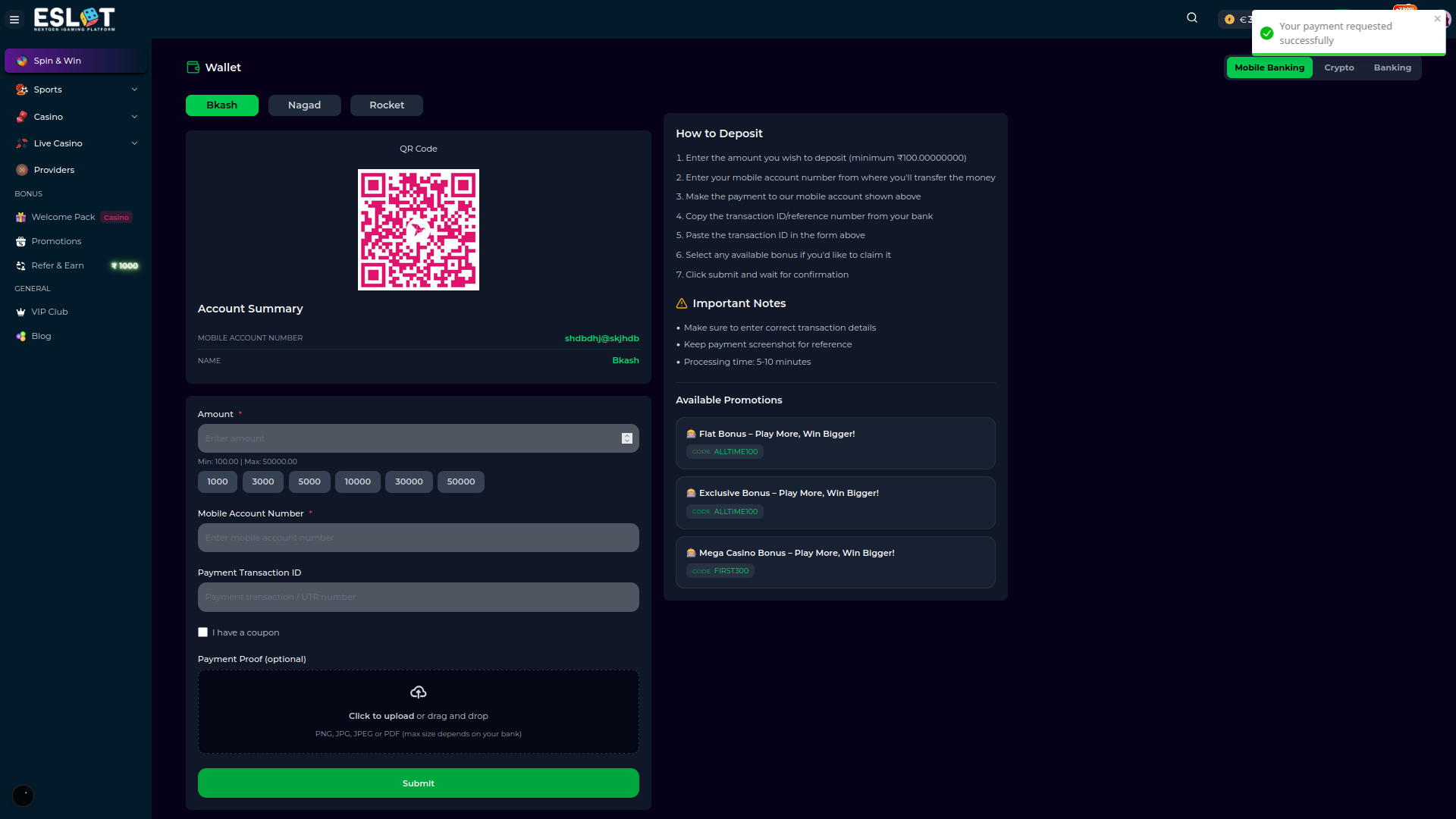
1. Click Deposit from the dashboard or wallet section
 2. Select your preferred payment method
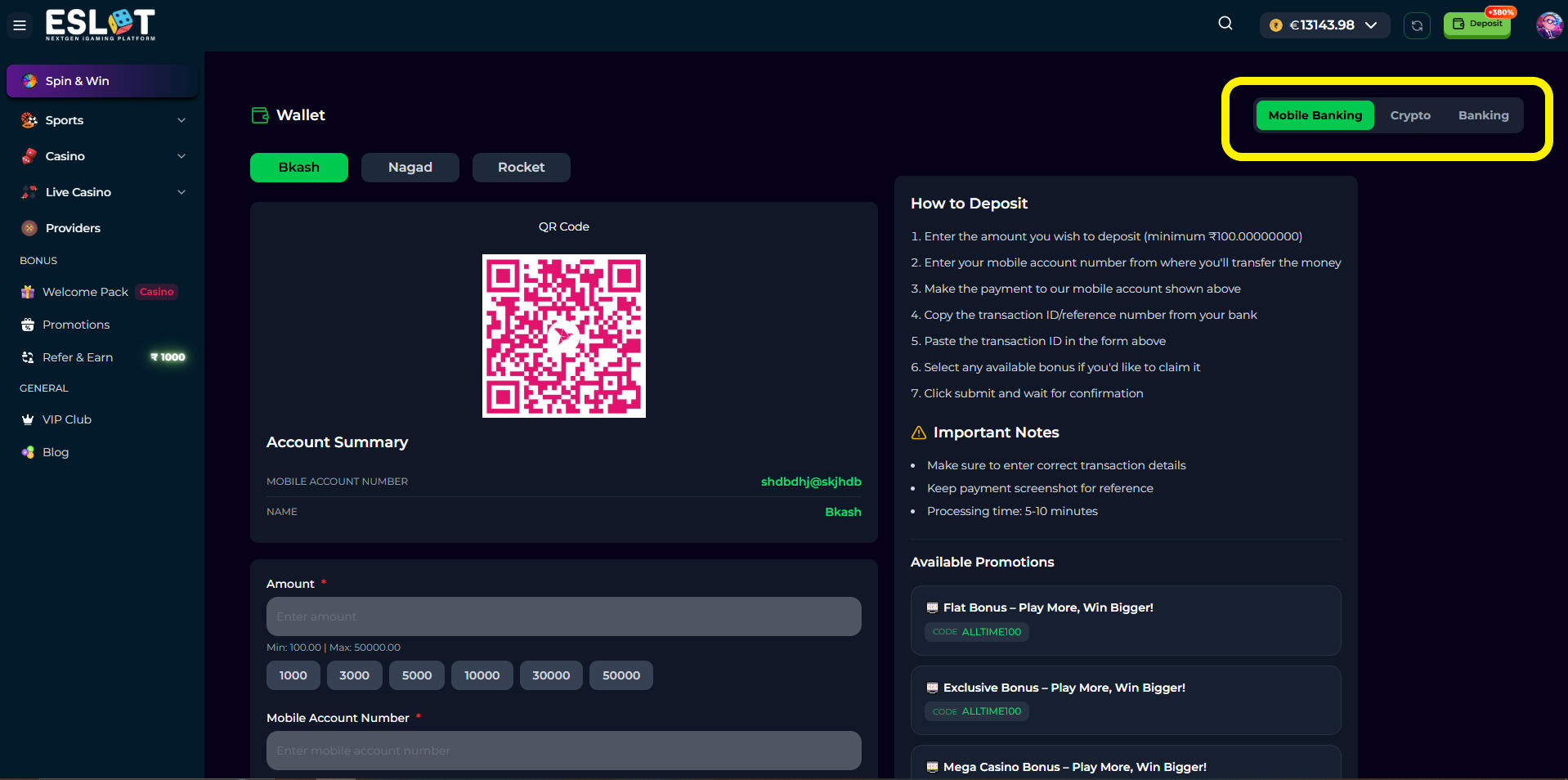 3. Choose from mobile banking options, here we have three channels and there are many more gateways we can add, here's some example MFS gateways those can be useable with our application.
| Country | Primary Mobile Banking / Digital Wallet Names |
| :--------------- | :------------------------------------------------------- |
| **Bangladesh** | bKash, Nagad, Rocket, Upay, mCash |
| **India** | Paytm, PhonePe, Google Pay, Amazon Pay, BHIM |
| **Kenya** | M-Pesa, Airtel Money, T-Kash |
| **China** | Alipay, WeChat Pay (Tenpay) |
| **Pakistan** | Easypaisa, JazzCash, Sadapay, NayaPay |
| **Philippines** | GCash, Maya (formerly PayMaya) |
| **Indonesia** | GoPay, OVO, DANA, LinkAja |
| **Brazil** | Pix (System), PicPay, Mercado Pago |
| **Nigeria** | OPay, PalmPay, Paga, MTN MoMo |
| **Ghana** | MTN Mobile Money (MoMo), Vodafone Cash, AirtelTigo Money |
| **Vietnam** | MoMo, ZaloPay, Viettel Money |
| **Thailand** | TrueMoney, Rabbit LINE Pay, PromptPay (System) |
| **Tanzania** | M-Pesa, Tigo Pesa, Airtel Money |
| **South Africa** | Capitec App, TymeBank, SnapScan |
| **Egypt** | Vodafone Cash, Fawry, InstaPay |
| **USA** | Venmo, Cash App, Zelle |
4. Give payment/deposit amount along with other details \\
* For Mobile banking
3. Choose from mobile banking options, here we have three channels and there are many more gateways we can add, here's some example MFS gateways those can be useable with our application.
| Country | Primary Mobile Banking / Digital Wallet Names |
| :--------------- | :------------------------------------------------------- |
| **Bangladesh** | bKash, Nagad, Rocket, Upay, mCash |
| **India** | Paytm, PhonePe, Google Pay, Amazon Pay, BHIM |
| **Kenya** | M-Pesa, Airtel Money, T-Kash |
| **China** | Alipay, WeChat Pay (Tenpay) |
| **Pakistan** | Easypaisa, JazzCash, Sadapay, NayaPay |
| **Philippines** | GCash, Maya (formerly PayMaya) |
| **Indonesia** | GoPay, OVO, DANA, LinkAja |
| **Brazil** | Pix (System), PicPay, Mercado Pago |
| **Nigeria** | OPay, PalmPay, Paga, MTN MoMo |
| **Ghana** | MTN Mobile Money (MoMo), Vodafone Cash, AirtelTigo Money |
| **Vietnam** | MoMo, ZaloPay, Viettel Money |
| **Thailand** | TrueMoney, Rabbit LINE Pay, PromptPay (System) |
| **Tanzania** | M-Pesa, Tigo Pesa, Airtel Money |
| **South Africa** | Capitec App, TymeBank, SnapScan |
| **Egypt** | Vodafone Cash, Fawry, InstaPay |
| **USA** | Venmo, Cash App, Zelle |
4. Give payment/deposit amount along with other details \\
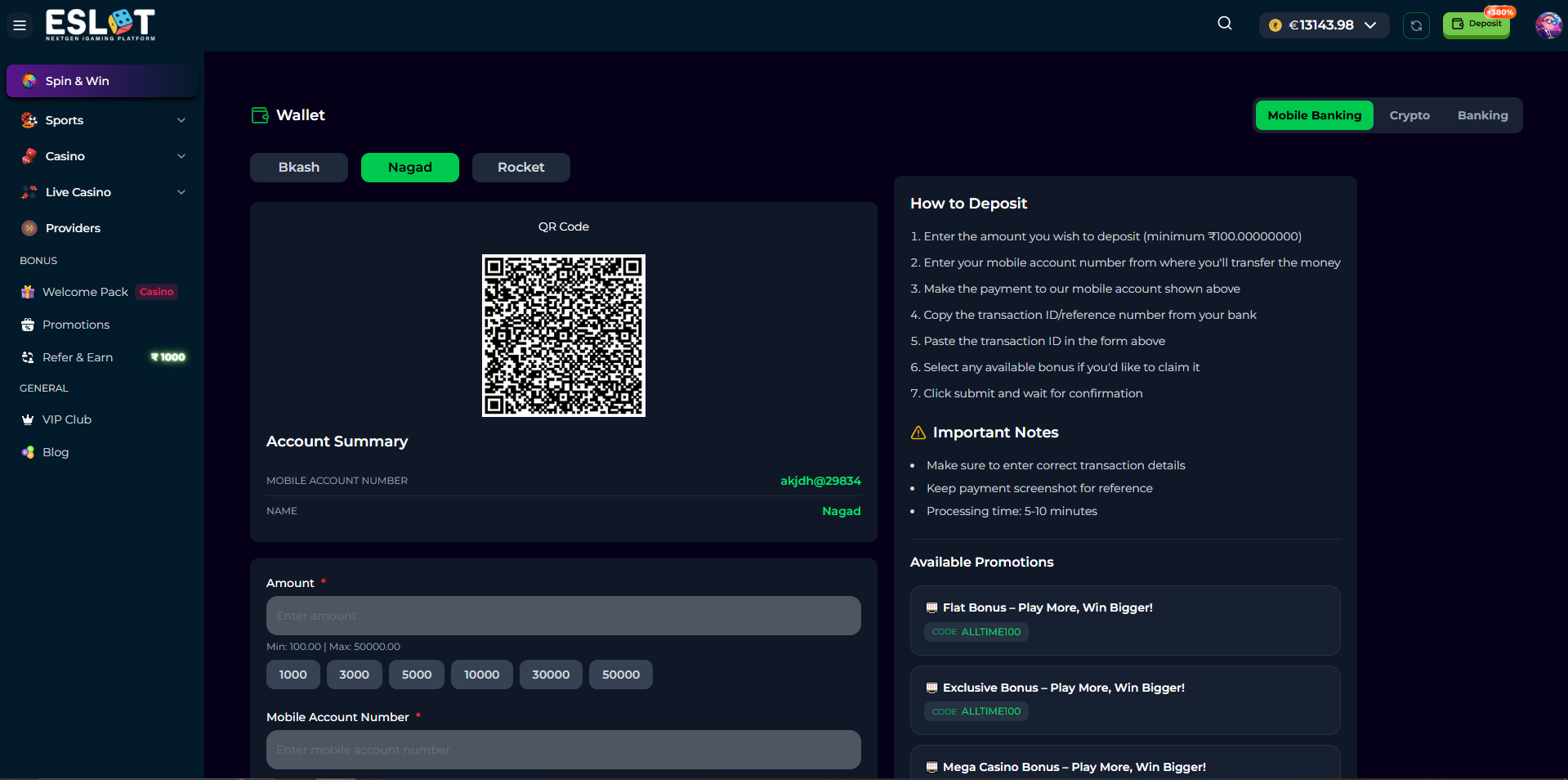
* For Mobile banking
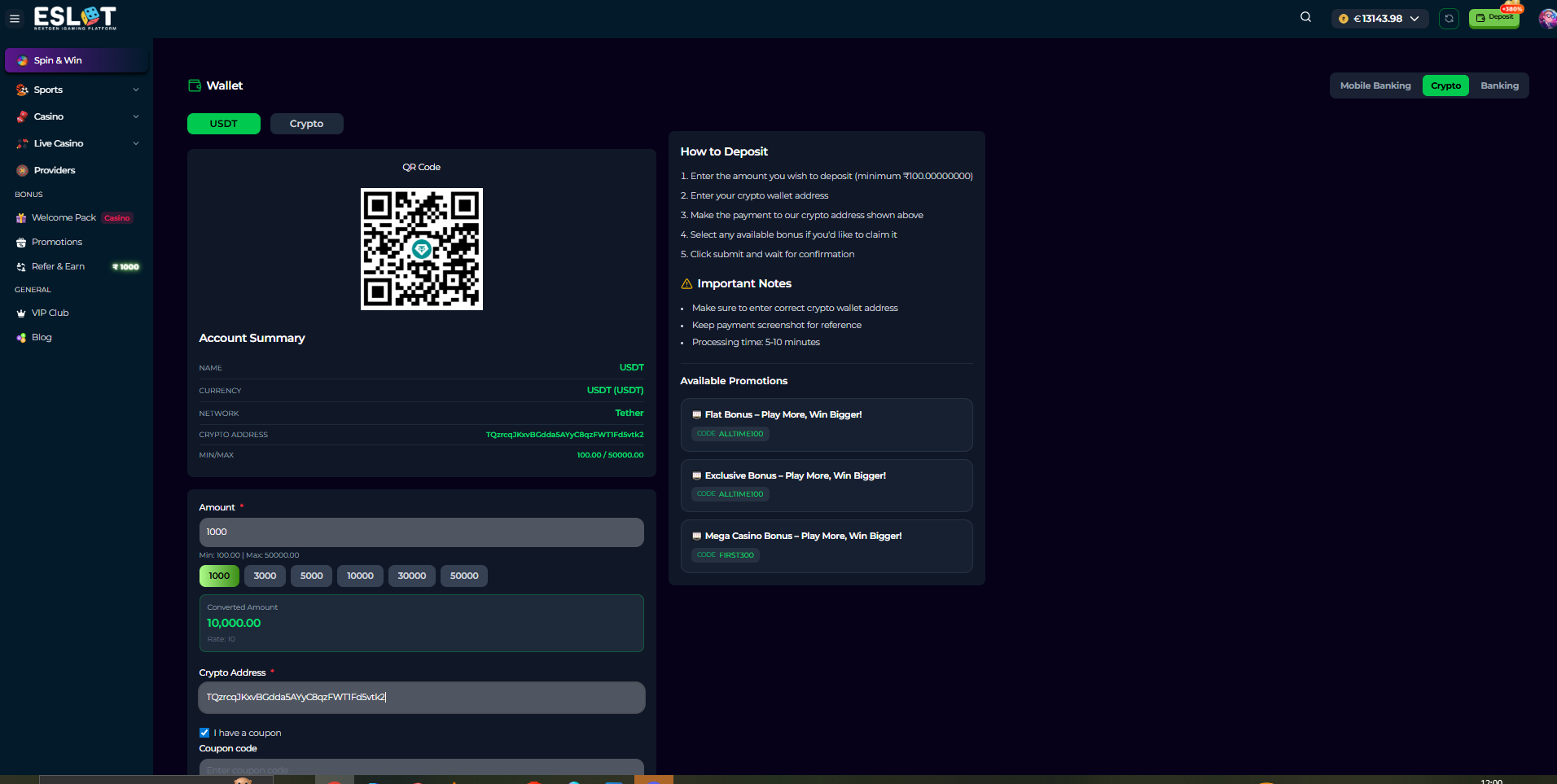
 * For Crypto
 * For Banking
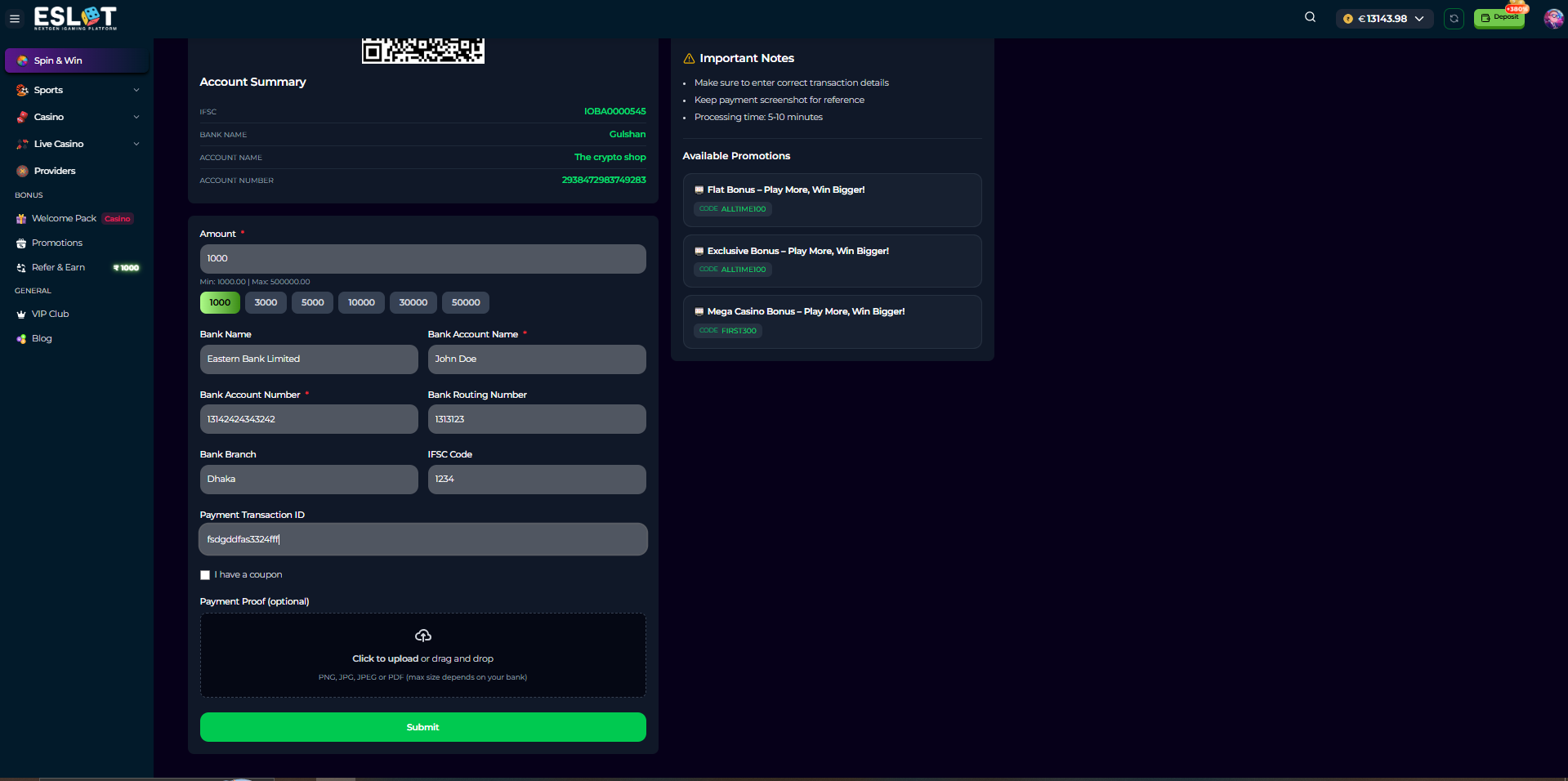 5. Complete the transaction - For every channel, after you give information about payment amount and other details, click on submit button to complete and then wait for a few minutes for receiving the amount while it gets approved/rejected from the backend.
 ### **Withdrawing Funds**
To withdraw your winnings:
1. Click Withdraw from the User menu section
### **Withdrawing Funds**
To withdraw your winnings:
1. Click Withdraw from the User menu section
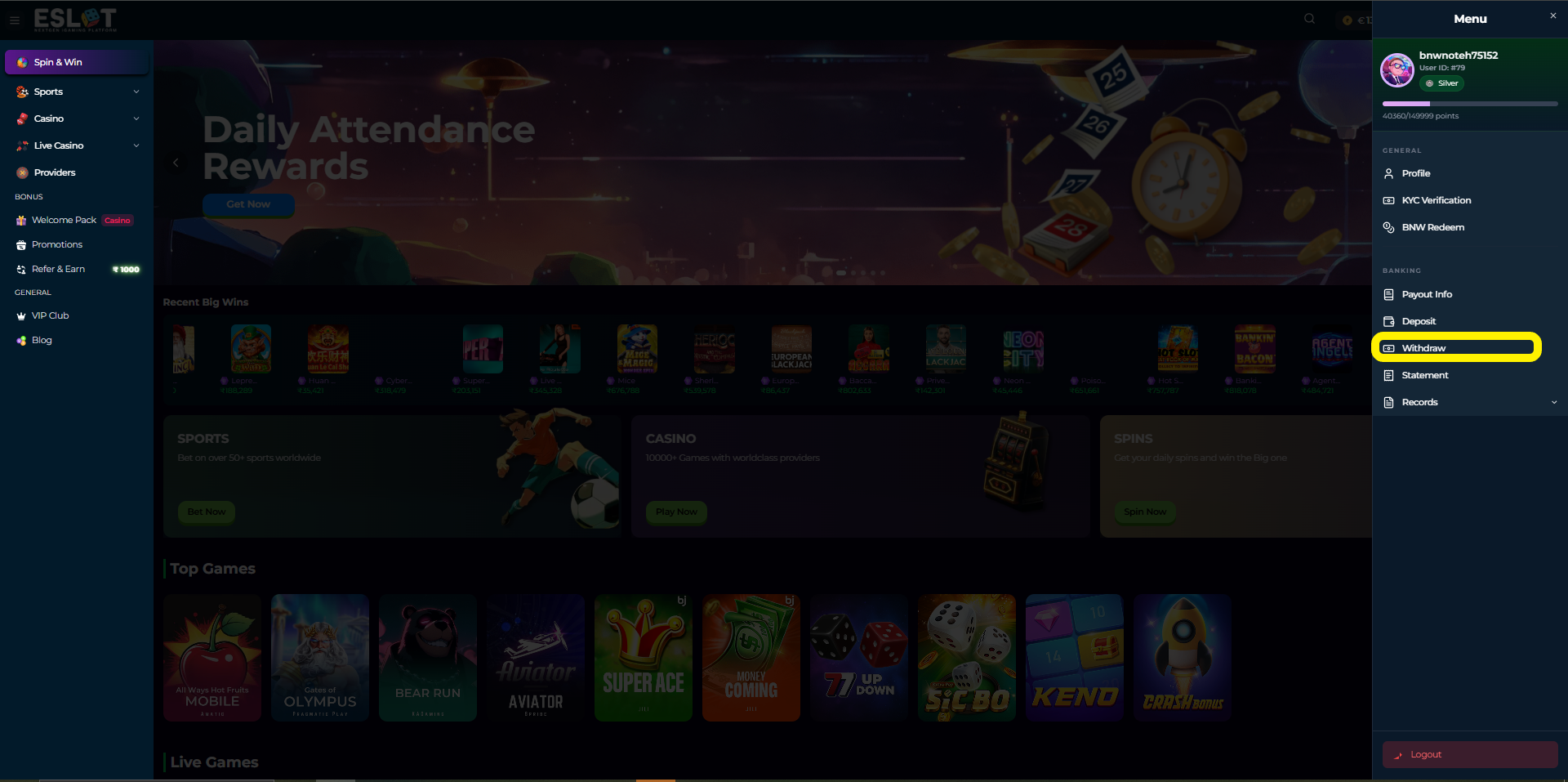 2. Select withdrawal method from Mobile Banking/Crypto/Banking
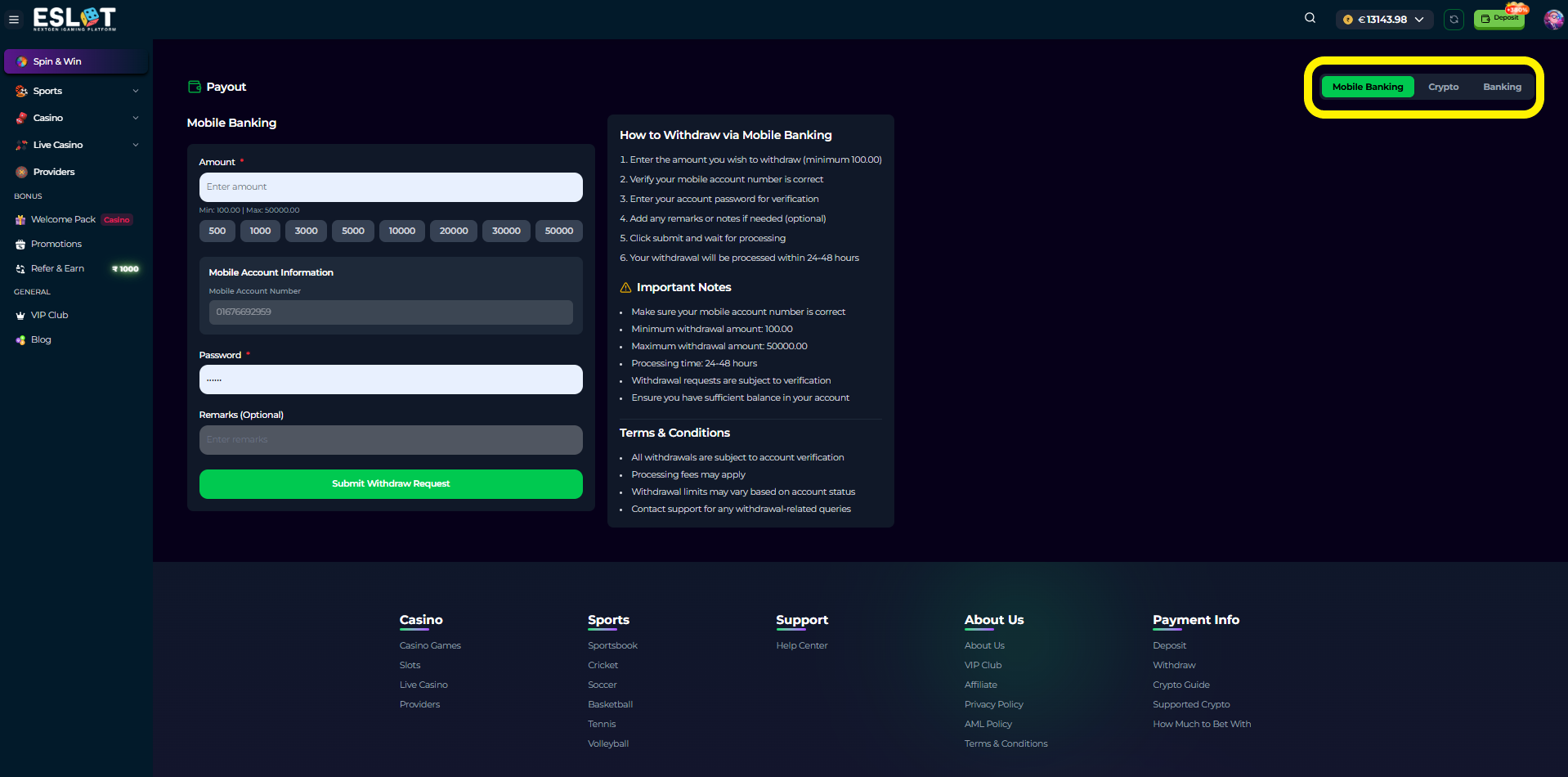 3. Enter the withdrawal amount and other details
4. For mobile banking channel
5.
6. Submit the request
7. Wait for processing and account verification
### **Transaction History**
Users can view:
* Deposit history
1. Click on “Records” and then “Deposit History” as marked in the picture below-
2. Choose the dates from the date filters for which dates you want to see the deposit history/log. It will show you the deposit history logs along with the status including Cancelled/Deposited with the dates.
* Withdrawal history
* Betting and game history
3. Enter the withdrawal amount and other details
4. For mobile banking channel
5.
6. Submit the request
7. Wait for processing and account verification
### **Transaction History**
Users can view:
* Deposit history
1. Click on “Records” and then “Deposit History” as marked in the picture below-
2. Choose the dates from the date filters for which dates you want to see the deposit history/log. It will show you the deposit history logs along with the status including Cancelled/Deposited with the dates.
* Withdrawal history
* Betting and game history